Understanding Confidence Scores
DocumentPro provides two types of confidence scores to help you assess the quality and reliability of your extracted data:
- OCR Confidence — measures how certain the text recognition engine was when reading characters from your document.
- AI Confidence — measures how confident the LLM is when validating extracted field values against your rules.
Both scores use a 0.0 to 1.0 scale and are color-coded in the UI for quick interpretation:
| Color | Range | Meaning |
|---|---|---|
| 🟢 Green | ≥ 0.85 | High confidence |
| 🟡 Yellow | ≥ 0.65 and < 0.85 | Medium confidence — consider reviewing |
| 🔴 Red | < 0.65 | Low confidence — manual review recommended |
1. OCR Confidence
What It Is
OCR (Optical Character Recognition) confidence reflects how certain the text reader was about each character it recognized during the document scanning process. A score of 1.0 means the OCR engine is fully confident in its reading, while lower scores indicate uncertainty — often caused by poor scan quality, handwriting, or unusual fonts.
Where to Find It
After a document is processed, each extracted field displays a small info icon (ℹ️) in the top-right corner. Hovering over this icon reveals the OCR confidence tooltip.
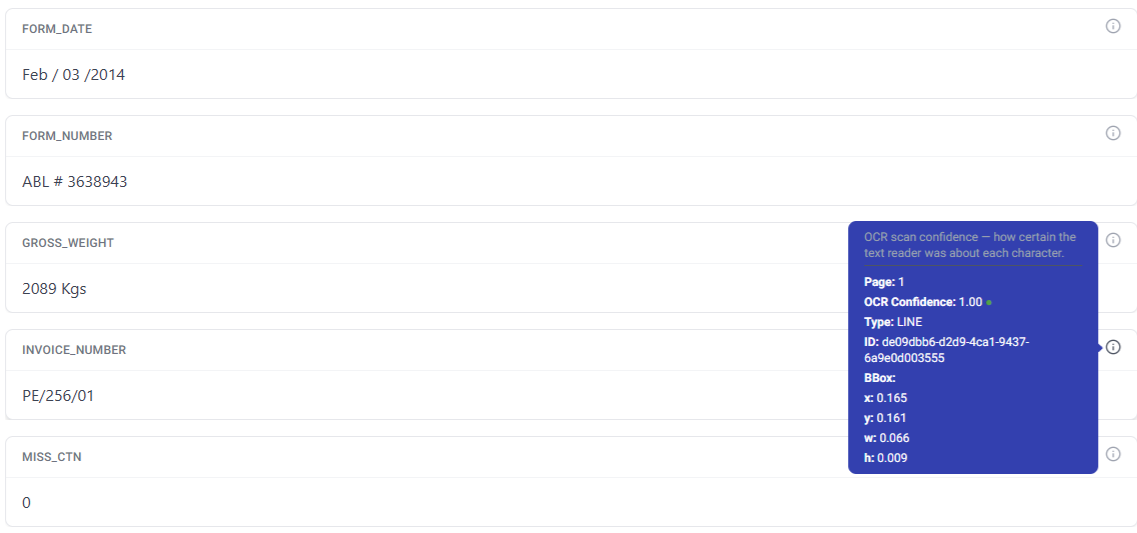
The tooltip shows:
- OCR Confidence — the confidence score with a color-coded dot
- Page — which page the extracted text was found on
- Type — the type of text element detected (e.g., LINE, WORD)
- ID — unique identifier of the detected text element
- BBox — the bounding box coordinates (x, y, width, height) showing exactly where the text was located on the page
When to Use It
- High scores (≥ 0.85): The extracted text is very likely correct. No action needed.
- Medium scores (0.65 – 0.84): The text is probably correct but worth a quick check, especially for critical fields like amounts or account numbers.
- Low scores (< 0.65): The OCR engine struggled with this text. Check the original document and correct the extracted value if needed.
If you consistently see low OCR confidence on certain documents, try enabling Detect Layout and Detect Tables in your Workflow's OCR settings for improved accuracy. Ensuring good scan quality (300+ DPI, minimal skew) also helps.
2. AI Confidence (Validation)
What It Is
AI confidence is generated by DocumentPro's LLM-powered validation system. Unlike OCR confidence which measures text recognition, AI confidence measures how confident the model is that an extracted value meets your validation criteria. This is part of the Validate Field post-processing action in Workflows.
Setting Up Validation
To use AI confidence scoring, add a Validate Field action step to your Workflow:
- Go to your Workflow settings
- Open the Action Steps section
- Click the + button to add a new step
- Select Validate Field
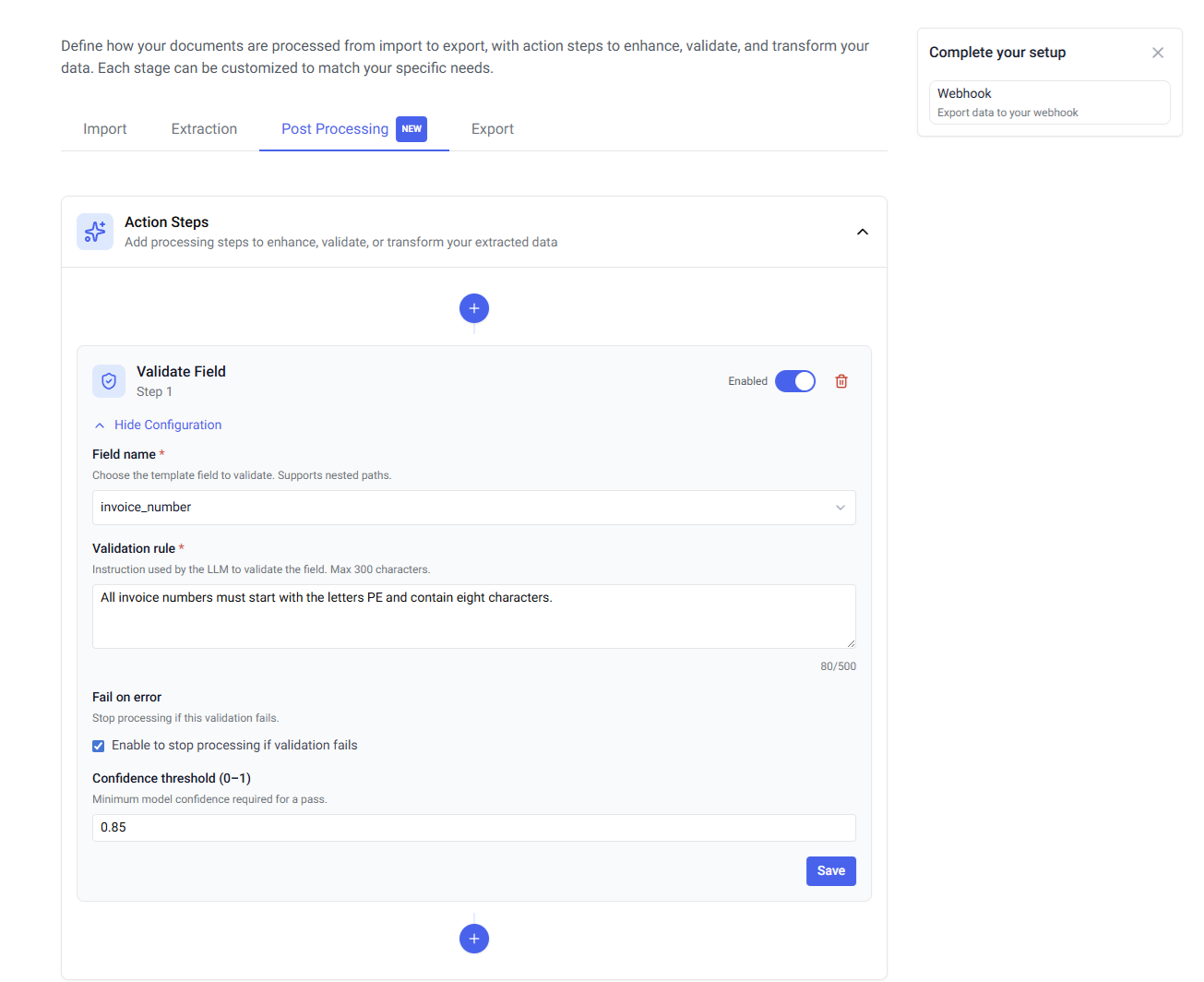
Configuration Options
| Setting | Description |
|---|---|
| Field name | The template field to validate. Supports nested paths for table fields. |
| Validation rule | A natural language instruction telling the LLM what to check (max 500 characters). For example: "Confirm that the Purchase Order number follows the expected pattern of 8 digits." |
| Fail on error | When enabled, the workflow stops processing if this validation fails. |
| Confidence threshold (0–1) | The minimum AI confidence required for the validation to pass. Default: 0.9. |
How It Works
When a document is processed through your Workflow:
-
The AI parser extracts data from the document as usual.
-
For each Validate Field action step, the LLM evaluates the extracted value against your validation rule.
-
The LLM returns three pieces of information:
- AI Confidence — how confident the model is in its assessment (0.0 to 1.0)
- Valid — whether the field passed validation (Yes/No)
- Reason — a brief explanation of the validation result
-
If the AI confidence is below your configured threshold, the validation is considered failed — even if the field value itself appears correct. This ensures only high-confidence results pass through automatically.
Where to See Results
AI confidence results appear in the same info icon tooltip as OCR confidence, in a separate section labeled "AI extraction confidence". The tooltip displays the AI confidence score, whether the field is valid, and the reason provided by the model.
Adjusting the Confidence Threshold
The default threshold of 0.9 works well for most use cases, but you may want to adjust it depending on your needs:
- Higher threshold (e.g., 0.95): Stricter validation. More fields will be flagged for manual review, but fewer errors will slip through. Best for high-stakes data like financial amounts or compliance fields.
- Lower threshold (e.g., 0.8): More permissive. Fewer fields flagged for review, but with slightly higher risk of incorrect data passing through. Suitable for less critical fields or high-volume processing where speed matters.
3. Comparing the Two Scores
| OCR Confidence | AI Confidence | |
|---|---|---|
| What it measures | Text recognition accuracy | Validation rule compliance |
| Source | OCR engine | LLM (Large Language Model) |
| When it runs | During document parsing | During post-processing (Validate Field action) |
| Configurable threshold | No (display only) | Yes (default 0.9) |
| Can stop the workflow | No | Yes (with "Fail on error" enabled) |
| Where displayed | Field info tooltip | Field info tooltip + Workflow action config |
Tips for Using Confidence Scores
-
Use both scores together — OCR confidence tells you if the text was read correctly; AI confidence tells you if the value makes sense for your use case. A field could have high OCR confidence (text was read perfectly) but low AI confidence (the value doesn't match your expected pattern).
-
Set appropriate thresholds for your use case — For critical fields like invoice amounts or tax IDs, use a higher AI confidence threshold (0.95). For descriptive fields like item names, a lower threshold (0.8) may be sufficient.
-
Enable "Fail on error" for critical validations — This prevents incorrect data from flowing into downstream systems like your accounting software or ERP.
-
Write clear validation rules — The more specific your validation rule, the more reliable the AI confidence score. Instead of "Check if this is correct", write "Verify this is a valid US phone number in the format (XXX) XXX-XXXX".
-
Monitor low-confidence patterns — If certain document types or fields consistently show low confidence, consider adjusting your Workflow's OCR settings, improving scan quality, or refining your field descriptions in the template schema.